Open a KiCad project
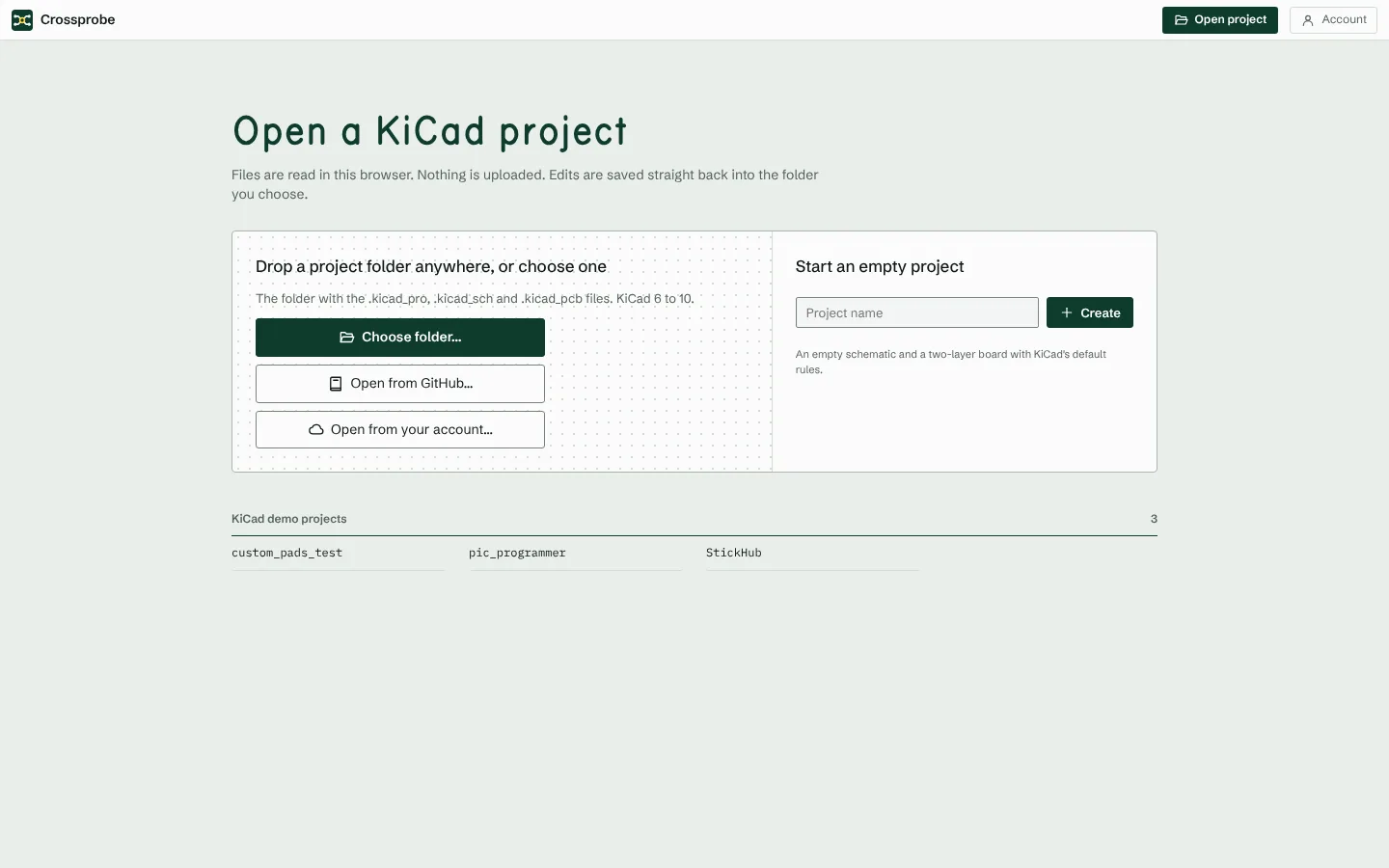
Crossprobe reads your KiCad project in the browser. Choose or drop the folder that holds the .kicad_pro, and the schematic, board and 3D views open from the files on your disk.
What you need
- A KiCad project from KiCad 6 to 10: the
.kicad_pro, its.kicad_schsheets and the.kicad_pcb. Custom design rules (.kicad_dru) and project symbol libraries in the folder are read too. - A current desktop browser, on a screen at least 1000 × 560 pixels, with a mouse and a keyboard. On a phone or a small tablet the app says so and offers to email you the link for a computer. Projects are parsed in a web worker, so large boards stay responsive.
Nothing is uploaded. The files are read in your browser and stay there, unless you store the project in your account.
Open your project
- Go to the app.
- Choose Open project and pick the folder that holds your
.kicad_pro, or drop the folder onto the start screen. - Crossprobe parses the project and opens the schematic.
S,Band3switch between the schematic, the board and 3D.
To try Crossprobe without a project of your own, open one of the KiCad demos listed on the start screen.
Start a new project
The start screen can also create a new, empty KiCad project. It is a plain KiCad project: you can open it in KiCad at any time.
Store it in your account
A project you open stays in your browser. To open it on another device, or to let an AI assistant work on it through the MCP server, store it: sign in, open the project menu next to Save, and choose Store in your account.
- From then on, your edits are saved to your account by themselves, a few seconds after you stop and whenever you leave the tab. A stretch of work becomes one revision; Save starts a new one. The last 50 revisions are kept, and you can open any of them.
- Open from your account in the same menu lists your stored projects.
- If something else saved a newer revision (you on another device, or an assistant), the app tells you when its tab gets focus and offers to load it.
- An account without a plan stores 3 private projects. Projects you share publicly are not counted. See Plans and usage.
An assistant can also start from nothing: it builds a board from your requirements and stores it in your account for you to open.
Share it publicly
A stored project can be shared with a link. Anyone who has the link can open it in Crossprobe, without an account.
- Open the project menu and choose Your account: revision …
- Under Sharing, choose Share publicly, and copy the link.
Or tick Share publicly when you store the project for the first time.
- The link always opens the newest revision.
- Whoever opens it gets a copy in their own browser. They can look at it, change their copy, download it, or store it in their own account. Yours can't be changed through the link.
- A shared project is not listed anywhere. It is public in the sense that the link works for anyone who has it, so share the link only where you mean to.
- Shared projects are not counted against the number of projects you may store, on any plan. The fair-use terms apply.
- Stop sharing makes the project private again and the link stops working. It then counts against your number of projects, so it needs room there.
Your files stay KiCad files
Crossprobe writes the same files KiCad does. Files you don't change are written back byte for byte, and edits produce minimal diffs, so the project stays reviewable in git. ⌘S saves the changed files, and changes you haven't saved survive a page reload.
Next: have your assistant build a board, or learn the keyboard shortcuts.